
Running your own headless Chrome for screenshots is a weekend project that turns into a permanent one: pinned browser versions, memory leaks, fonts that render differently on the server, and pages that time out only in production. A screenshot API moves that to someone else's infrastructure and leaves you with an HTTP call.
This guide covers the domscout POST /screenshot endpoint from the first request to the options you will need on real sites.
The first screenshot
Create an API key in the dashboard and keep it in an environment variable. Then:
responseType: "binary" returns the raw image bytes with a matching Content-Type, which is what you want when the next step is a file or an upload. responseType: "json" returns the same image base64-encoded in screenshotBase64, next to metadata about the capture. Set it explicitly either way, so nobody has to remember a default.
Node.js
Python
Both examples check for exactly 200 rather than any success code. A heavy request can be accepted as a durable job and answer 202 with a jobId instead of an image; see "Slow pages" below.
Choose the viewport
The default viewport is 1280 by 800 CSS pixels at a device scale factor of 2, so a default PNG is 2560 by 1600 pixels: sharp on a high-density display, and four times the bytes of a 1x image. Set deviceScaleFactor: 1 when file size matters more than sharpness.
width: 100 to 3840, default 1280.height: 100 to 2160, default 800.deviceScaleFactor: 1 to 3, default 2.
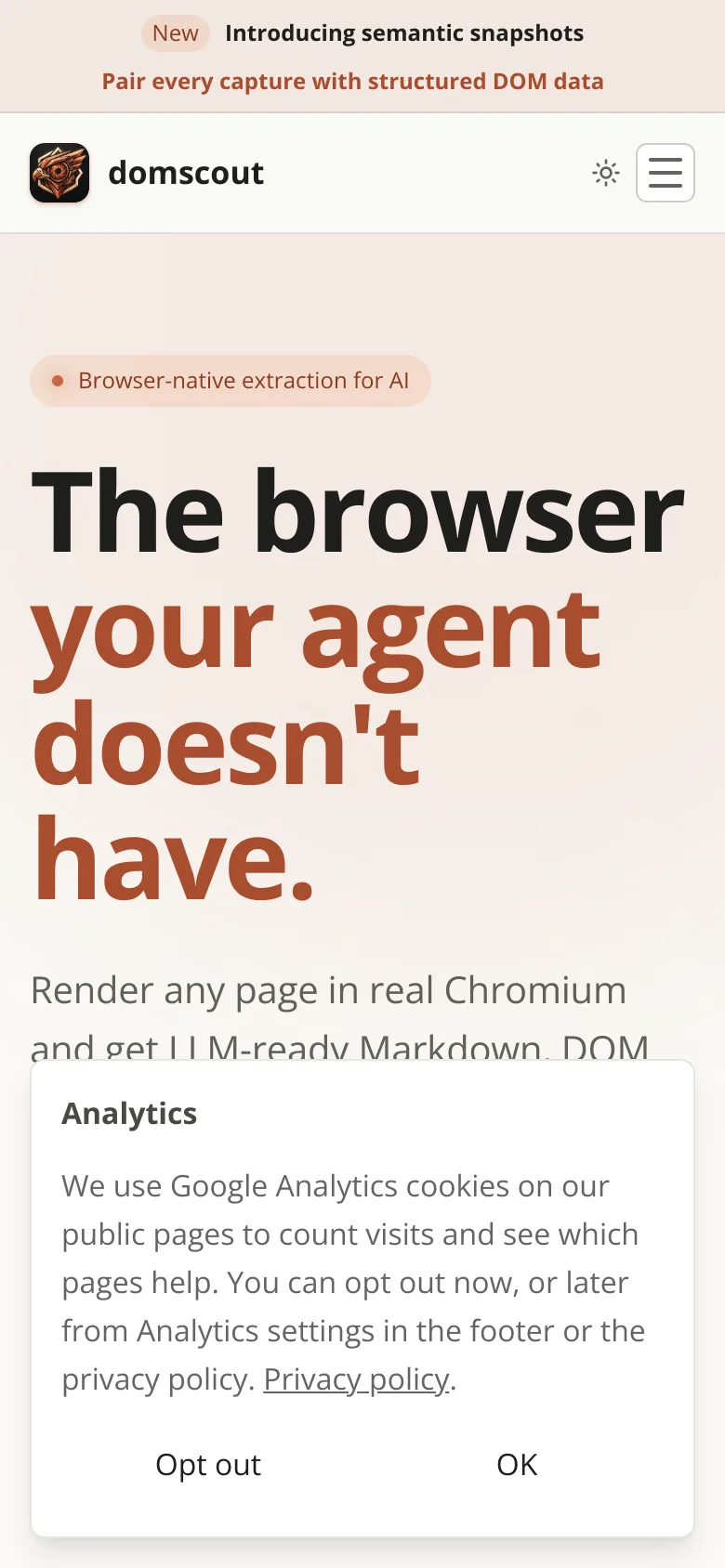
For a phone-sized capture, set the viewport and tell the page it is on a touch device. Responsive sites often serve different markup below a breakpoint, not just a narrower layout, so this is the only way to see what a mobile visitor sees:
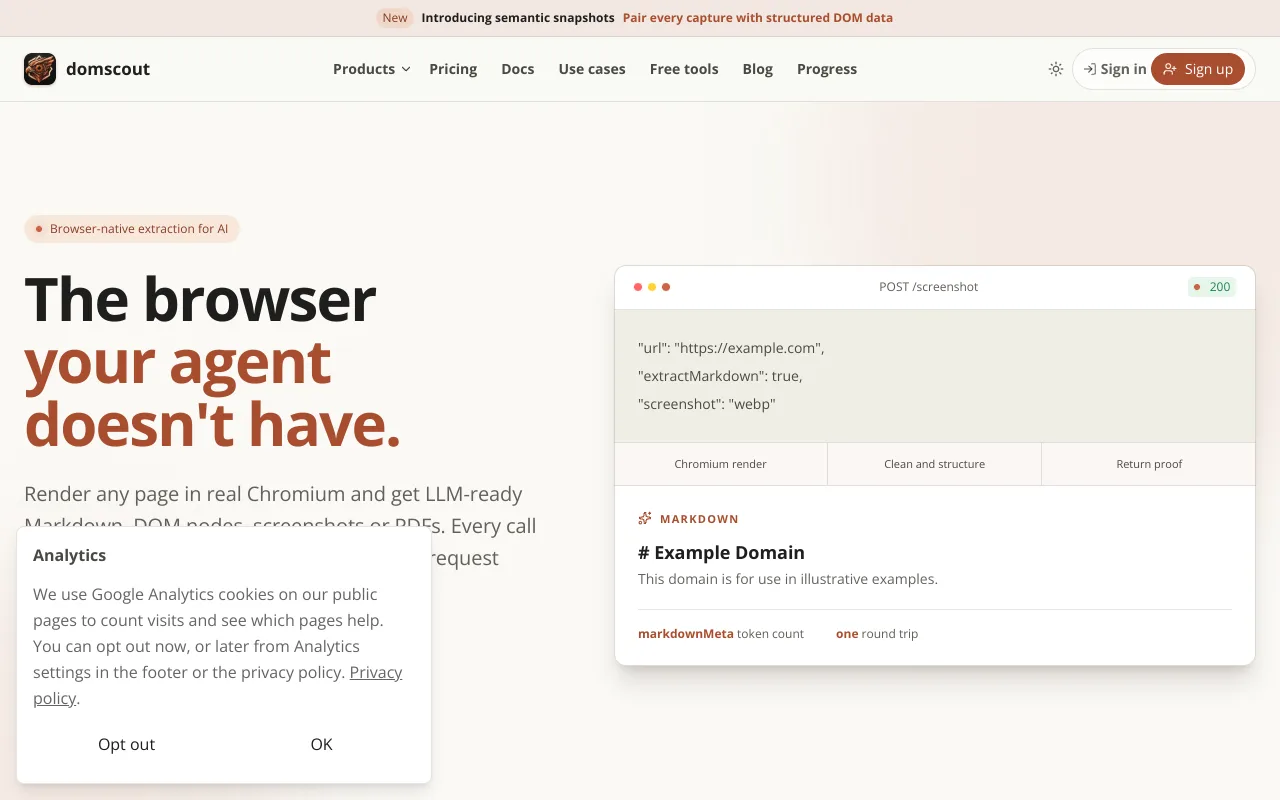
Here is what comes back for this site's own homepage, once at 1280 by 800 and once at the phone viewport above with deviceScaleFactor: 2, both as WebP:
Capture the whole page
fullPage: true captures the entire scrollable page rather than the viewport. Pages taller than 12,000 pixels are refused with 400 CAPTURE_TOO_TALL rather than silently cropped, so an infinite feed fails loudly instead of producing a misleading image.
Many pages only load images as you scroll. lazyScroll: true scrolls down in viewport-sized steps (up to 20 of them) before capturing, then returns to the top, so those images are in the final shot.
quality (1 to 100, default 80) applies to JPEG and WebP. For long pages, JPEG or WebP at 80 is usually a fraction of the PNG's size with no visible difference.
Capture one element
To screenshot a chart, a pricing table or a single card, point captureSelector at it:
The element must become visible within 5 seconds; otherwise the request is refused with 400 CAPTURE_SELECTOR_NOT_FOUND, which is far easier to debug than a screenshot of the wrong thing.
Hide what you do not want in the shot
Cookie banners, chat widgets and newsletter modals end up in the middle of automated screenshots, like the analytics notice in the captures above. There are two ways to remove them:
hideSelectors: a list of up to 50 CSS selectors hidden before capture. Exact, and you control it.cleanup: a heuristic pass that hides likely cookie and consent banners, ads, chat widgets, newsletter pop-ups and large sticky headers without you naming them. It is a heuristic, not a maintained rule list, so passpreserveSelectorsfor anything it must never touch. Available on Pro and above.
For a page that finishes rendering late, waitForSelector waits until an element exists, and delay adds a fixed pause of up to 5,000 milliseconds after load. Prefer waitForSelector: a fixed delay is either too short on a slow day or wasted time on a fast one.
Save a page as a PDF
format: "pdf" prints the page with Chromium's PDF engine. pdfFormat sets the paper size (A4 by default; Letter, Legal, Tabloid, Ledger and A0 to A6 are also accepted), landscape rotates it, and printBackground (on by default) keeps background colours and images.
Keep a copy
save: true stores the capture for your plan's retention period - 7 days on Hobby, 30 on Pro, 90 on Business, 365 on Enterprise. A binary response carries the ID in the X-Domscout-Capture-Id header; a JSON response carries it as metadata.captureId. Later, GET /capture/{captureId} returns a signed download link that is valid for up to an hour. That is useful for audit trails and "what did this page say on that day" evidence.
Slow pages
A capture that cannot finish inside the synchronous window answers 504 with RENDER_DEADLINE_EXCEEDED. On Pro and above, resend it with "async": true: the API answers 202 with a jobId, and GET /job/{jobId} returns the result once status is done. If you have many URLs, batches (Business and above) submit up to 100 captures in one request.
What it costs
Every request is priced in credits before it runs, and no single request can cost more than 10:
- A viewport capture in PNG, JPEG or WebP: 1 credit.
fullPageorlazyScroll: +1.format: "pdf": +1.cleanup: +1.
PDF output and full-page capture need Pro or above. The free Hobby plan includes 1,000 captures a month; see pricing for the rest, and call GET /credits to read your balance and the live price list without spending anything.
Next steps
- Build a request in the playground and copy the code it generates.
- The screenshot API overview summarises formats and plans on one page.
- If what you actually need is the page's text rather than its pixels, converting a page to Markdown is the same engine with a different output.